

Open the Local Models page
Click Settings at the bottom of the sidebar, then select Provider → Local. Clicking Provider opens the page for the provider your chat uses right now, marked In use.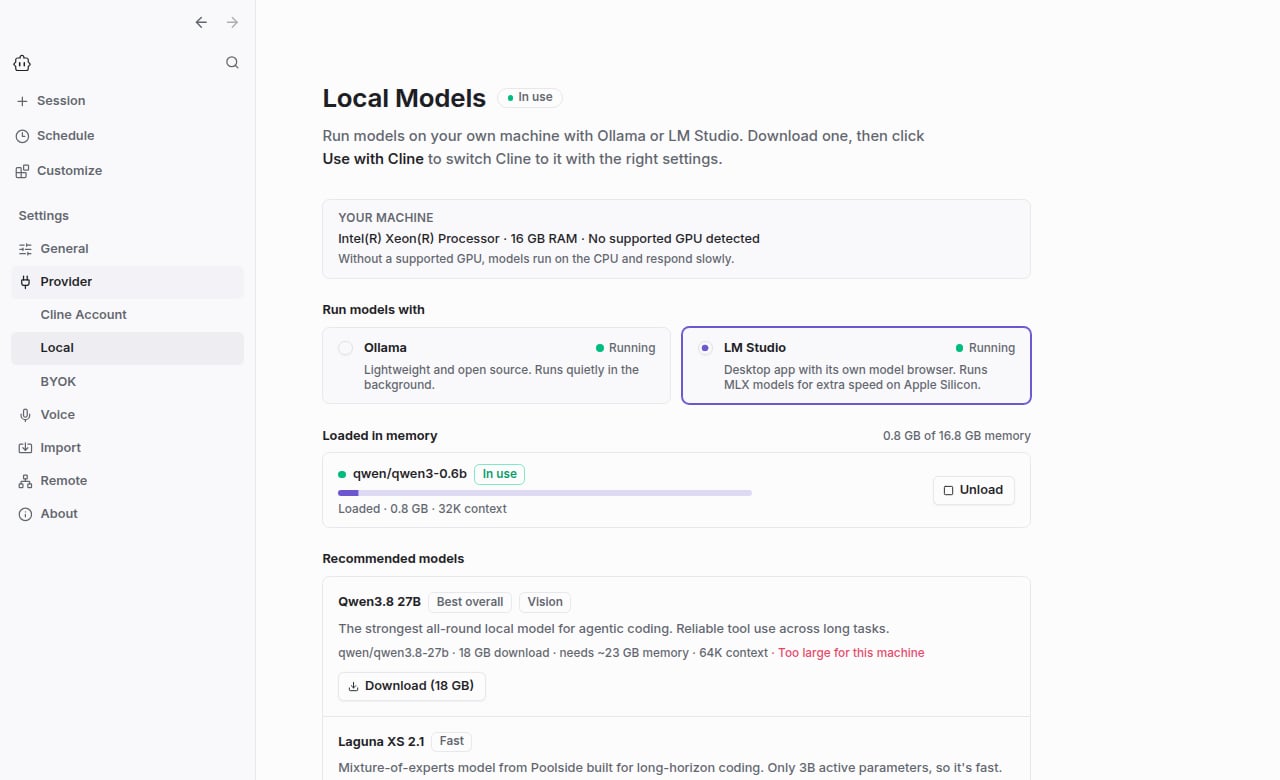
- Your machine: your processor, memory, and GPU, plus how large a model can run fully on the GPU.
- Run models with: whether Cline manages models through Ollama or LM Studio, and whether each one is running.
- Setup: if the runtime you picked isn’t installed or running, the page walks you through setting it up.
- Loaded in memory: models that are using memory right now, and how much.
- Recommended models: models picked for agentic coding with Cline, each labeled with how well it fits your machine. The best fit gets a Recommended for you badge.
- Downloaded models: every model on your disk, how much space each takes, and how much space is left.
Choose Ollama or LM Studio
Under Run models with, pick the app that runs your models. Each card shows whether that app is running, not running, or not installed. The rest of the page then manages that app’s models.
- Ollama is lightweight and open source, and runs quietly in the background.
- LM Studio is a desktop app with its own model browser and chat. On Apple Silicon Macs it can run MLX models, which are often faster.
Set up Ollama
You don’t need to set up Ollama before opening the page. It tells you what’s missing. If Ollama isn’t installed, the page shows how to install it on your system: a download button on macOS and Windows, or the install command on Linux.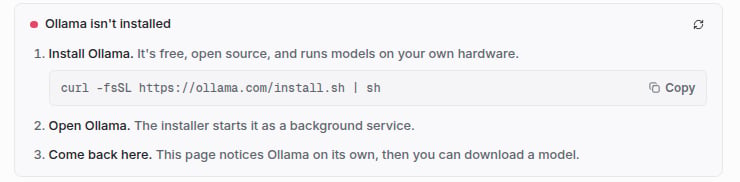

http://localhost:11434 by default. If your Ollama server runs somewhere else, change the Base URL under Settings → Provider → BYOK → Ollama. Cline can only start Ollama on your own computer, so for a remote server the page asks you to check that the server is running.
Set up LM Studio
If LM Studio isn’t installed, the page links to the LM Studio download. If you don’t want the desktop app, you can copy the command that installs just LM Studio’s background service instead.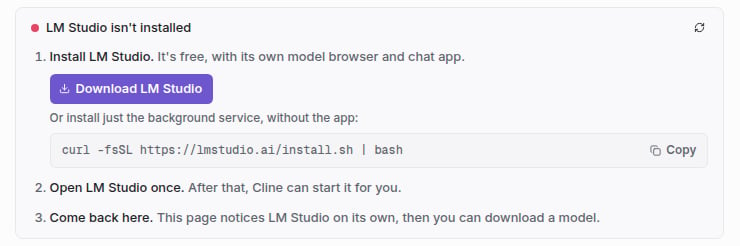
http://localhost:1234 by default. If your LM Studio server uses another address, change the Base URL under Settings → Provider → BYOK → LM Studio. If you turned on authentication for the LM Studio server, add the API token there too.
Download a model
Click Download on a model. A progress bar shows how much has downloaded. The download keeps going if you leave settings or start a session. Reopen the Local Models page to see its progress again. With Ollama, click Cancel to stop it. LM Studio doesn’t let other apps cancel its downloads, so stop an LM Studio download from the LM Studio app. If a model is bigger than the free space on your disk, its Download button is turned off and the page shows how much space is free.Use a model with Cline
Click Use with Cline on a downloaded model. Cline will:- Switch the chat to the Ollama or LM Studio provider and the model you picked. New sessions use it too.
- Save the model’s recommended context window to that provider’s settings.
- Load the model into memory, so your first message doesn’t wait for it to load.
Check memory use from the chat
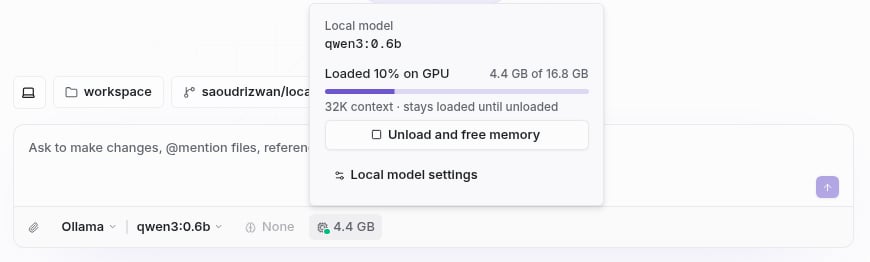
When the chat uses an Ollama or LM Studio model, a memory chip appears next to the Thinking picker below the message box. It shows how much memory the model is using, or Not loaded if it isn’t in memory. The dot is green when the model is loaded and red when Cline can’t reach Ollama or LM Studio. Click the chip to see more and act on it:- Unload and free memory when you’re done with the model.
- Load now to load the model before you send a message.
- Start Ollama or Start LM Studio if it isn’t running.
- Unload any other models that are using memory.
- Local model settings opens the Local Models page.
Load and unload models
A model has to be loaded into memory before it can respond. Click Load to load it ahead of time, and Unload to free up the memory when you’re done. Loaded models are listed under Loaded in memory at the top of the page, with how much of your computer’s memory they’re using.
- Where it’s running: fully on the GPU, on the CPU, or split between them. A model split between GPU and CPU responds more slowly. Ollama only.
- How much memory it’s using.
- The context window it was loaded with.
- How long it stays loaded. Ollama only.
OLLAMA_KEEP_ALIVE environment variable.
LM Studio works the same way, with two differences when it loads a model on its own: it uses the context length set for that model in LM Studio instead of the one Cline recommends, and it unloads the model after an hour without requests. Click Load or Use with Cline to load it with Cline’s context window instead.
View a model’s settings
Click Details on a downloaded model to see how Ollama runs it. The settings are read-only for now.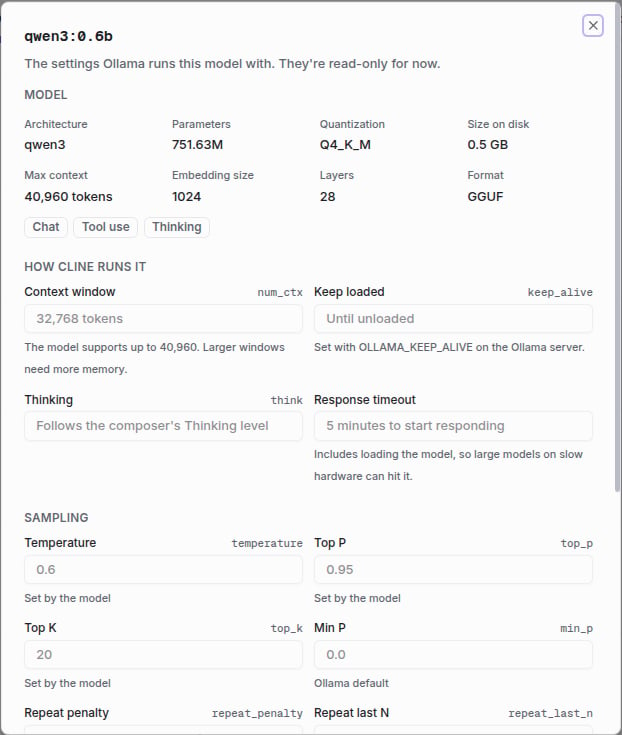
- Model: architecture, parameter count, quantization, size on disk, the longest context it supports, and what it can do, such as tool use, thinking, or vision.
- How Cline runs it: the context window Cline requests, how long the model stays loaded, whether thinking is used, and how long Cline waits for a response to start.
- Sampling: temperature, top P, top K, and the other settings that shape responses. Each one says whether the model sets it or Ollama’s default applies.
- Advanced: the model’s prompt template, system prompt, Modelfile, and license.
ollama create. It then appears under Downloaded models.
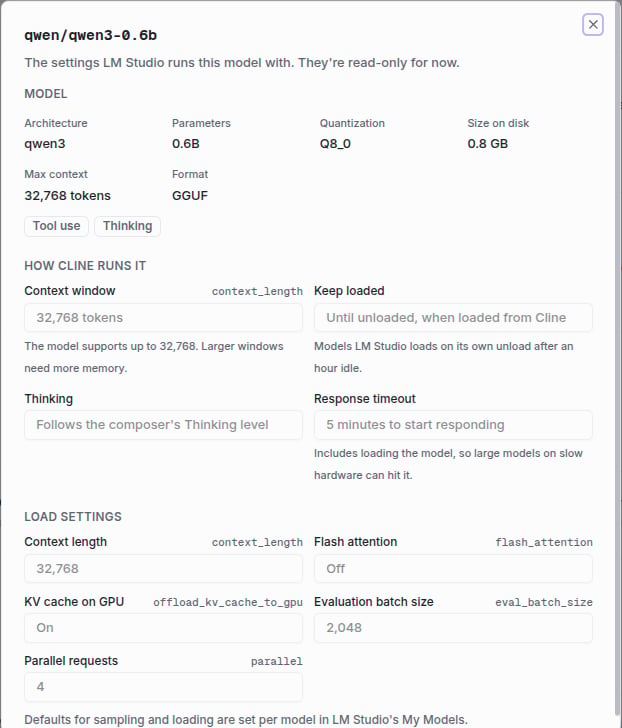
For an LM Studio model, the details show the model facts and how Cline runs it, plus a Load settings section with the context length, flash attention, batch size, and other settings LM Studio loaded it with. Load the model to see them.
Free up disk space
Downloaded models lists every model on your disk, largest first. A bar shows how much of your disk the models take, how much other files take, and how much is free.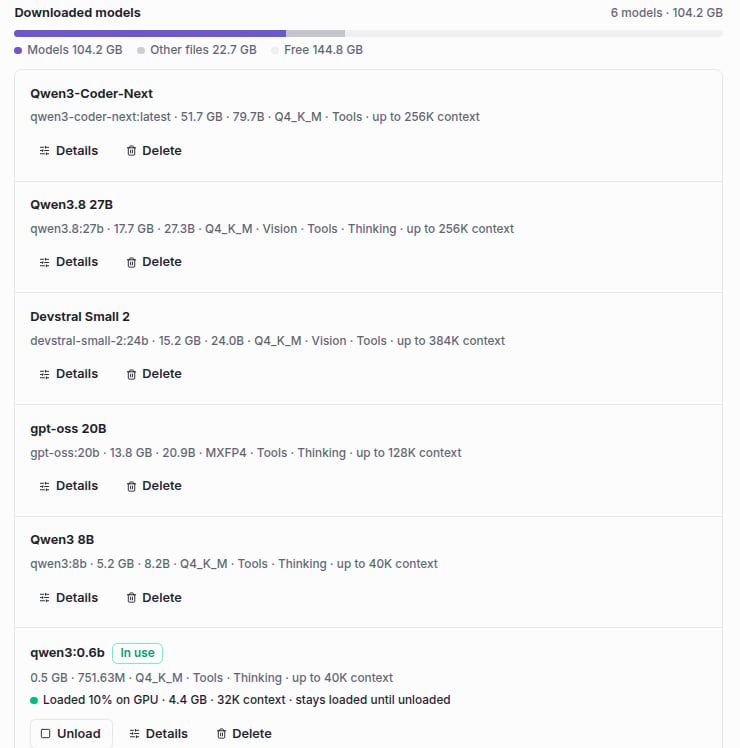
Which models are recommended
Each recommended model comes with the context window Cline uses for it.
Memory needed is an estimate of the model plus its context window. Smaller models respond faster but handle complex, multi-step tasks less reliably.
Cline compares each model’s memory needs against your hardware:
The Recommended for you badge goes to the first model in the list that runs well on your machine. If none do, it goes to the best model that fits, preferring faster mixture-of-experts models.
Cline detects GPU memory like this:
- Apple Silicon Macs share memory between the CPU and GPU. Cline counts about three quarters of total memory as available to the GPU.
- NVIDIA GPUs are detected through
nvidia-smi, which comes with the NVIDIA driver. - Other GPUs aren’t detected yet, so Cline treats the machine as CPU-only and its labels may be more cautious than necessary. You can still download and use any model.
Troubleshooting
“Ollama isn’t installed” after installing it- Make sure the installer finished, then wait a few seconds or click the refresh icon.
- Cline looks for Ollama on your
PATHand in the usual install locations. If you installed it somewhere else, start it yourself withollama serve.
- Open the Ollama app yourself, or run
ollama servein a terminal, and watch for errors. - If Ollama runs on another machine or port, check the Base URL under Settings → Provider → BYOK → Ollama.
- Open the LM Studio app once, then try again. Cline starts LM Studio with its
lmscommand, which LM Studio sets up the first time it runs. - You can also start the server yourself with
lms server start, or from the Developer tab in LM Studio. - If LM Studio runs on another machine or port, check the Base URL under Settings → Provider → BYOK → LM Studio.
- An out-of-memory error means the model and its context window don’t fit. Unload other models, close memory-heavy apps, or pick a smaller model.
- Check where the model is loaded. If it runs partly or fully on the CPU, a smaller model will respond much faster.
- On CPU-only machines, the first message of a session can take minutes while the model reads Cline’s instructions. Later messages in the same session are faster.