

Prerequisites
Before starting, make sure you have:- Cline installed in your editor (Install Guide)
- An AI model connected (Model Setup)
Step 1: Open a Project Folder
Cline needs a workspace, which is a folder on your computer where it can create and edit files. You’ll open an empty folder so Cline has a clean place to build your todo app.- VS Code / Cursor / Windsurf
- JetBrains
- Go to File → Open Folder in the top menu bar
- Create a new folder on your computer (for example, name it
todo-appon your Desktop) - Select that folder and click Open
Step 2: Open the Cline Panel
The Cline panel is a chat interface where you communicate with Cline. You need to open it before you can give Cline any instructions.- VS Code / Cursor / Windsurf
- JetBrains
Look at the Activity Bar, the vertical strip of icons on the far left (or far right) of your editor. Find the Cline icon (it looks like a small robot) and click it.A panel will open showing the Cline chat interface. You’ll see:
- A text input box at the bottom where you type messages
- A chat area above it where Cline’s responses will appear
- A settings gear icon in the top-right corner of the panel
Move Cline to the Right Sidebar
This step is optional, but recommended. By default, Cline opens in the left sidebar, replacing your file explorer. Moving Cline to the right sidebar lets you keep your project files visible on the left while chatting with Cline on the right, so you can watch your workspace change as Cline works. (JetBrains already opens Cline on the right, so no setup is needed there.)- VS Code / Windsurf
- Cursor
1
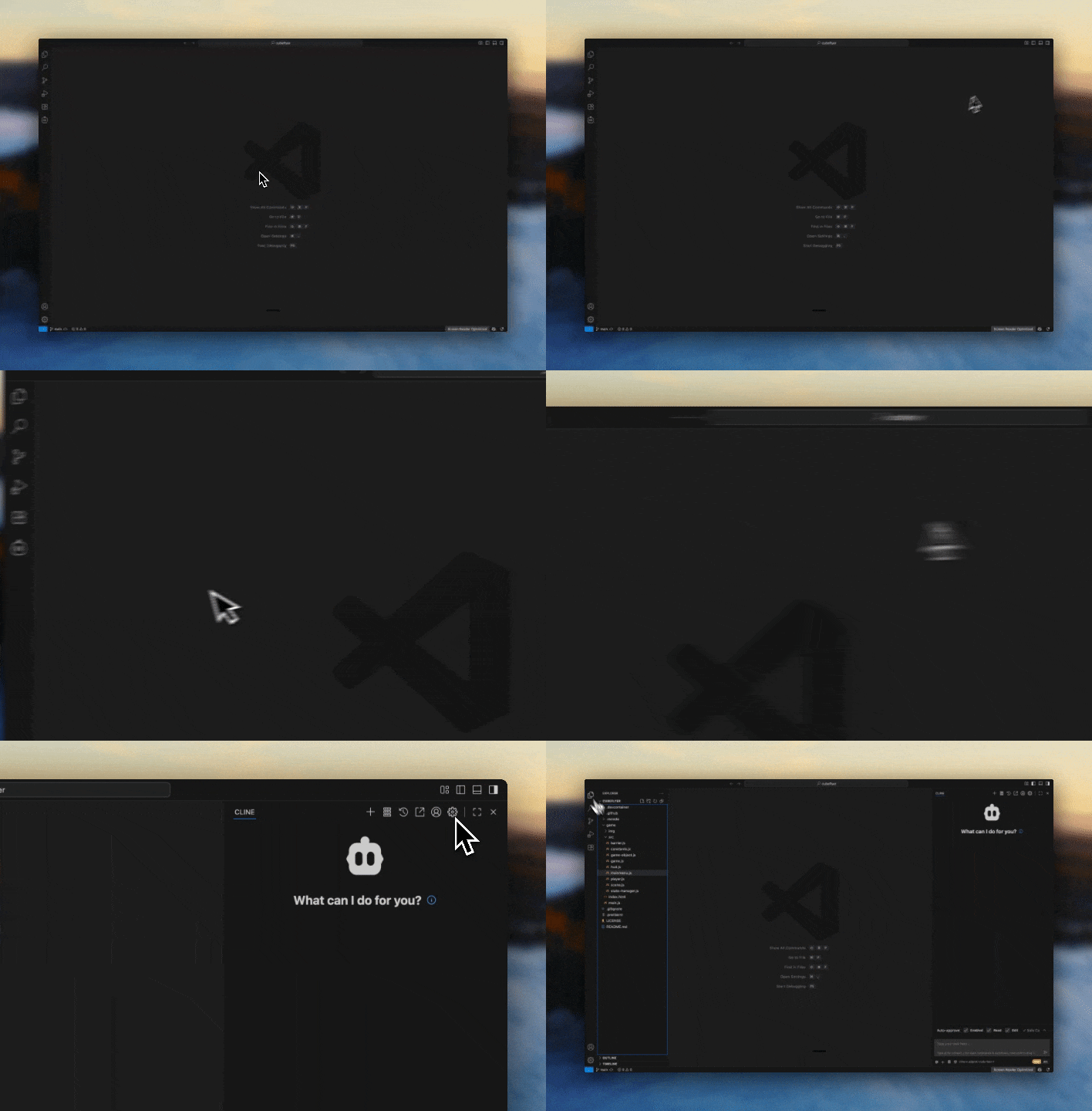
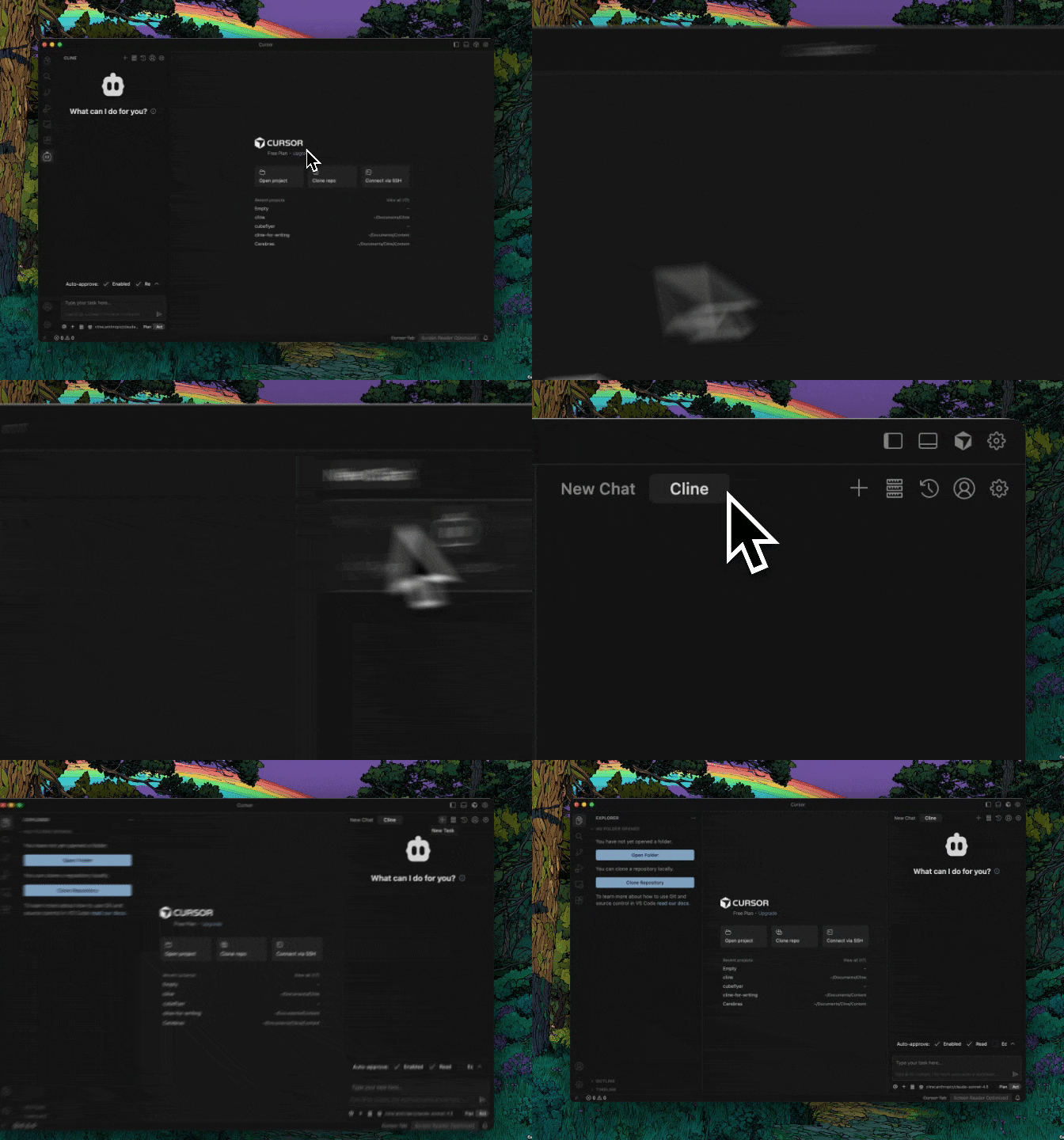
Open the secondary sidebar
Click the button in the top-right of the editor that toggles the right side panel (typically used for GitHub Copilot chat), or use the
Option/Alt + Cmd/Ctrl + B shortcut.2
Drag the Cline icon
Drag the Cline icon from the Activity Bar on the left over to the top of the right panel.
Step 3: Give Cline a Task
Now you’ll tell Cline what to build. You communicate with Cline by typing messages in the text input box, just like a chat app.- Click on the text input box at the bottom of the Cline panel
- Paste (or type) the following prompt into the text input box:
- Press Enter on your keyboard (or click the Send button) to send the message
Step 4: Understand Plan Mode vs Act Mode
When Cline receives your task, it may start in one of two modes. Look at the bottom of the Cline panel. You’ll see a toggle button that says either “Plan” or “Act”.If Cline is in Plan Mode
In Plan mode, Cline only talks. It analyzes your request and discusses the approach, but it does not create or modify any files. You’ll see Cline describe what it plans to build, but nothing will change in your project folder yet. This is useful for complex tasks where you want to discuss the approach first. You can:- Ask Cline questions about its plan
- Suggest changes to the approach
- Clarify your requirements
If Cline is in Act Mode
In Act mode, Cline will start creating files and writing code right away (but it still asks for your approval before making any changes, see the next step).For this tutorial, you want to be in Act mode so Cline creates the todo app. If you see “Plan” at the bottom, click it to switch to “Act”. Learn more about when to use each mode in the Plan and Act guide.
Step 5: Approve the Changes
Cline never modifies your files without your permission. Before creating or editing any file, Cline will show you exactly what it wants to do and wait for you to approve. Here’s what you’ll see in the chat:-
Cline proposes a file change. You’ll see a section in the chat showing the file path (e.g.,
index.html) and the code Cline wants to write. New lines of code are highlighted in green. -
Approve or Reject buttons appear. Directly below the proposed change, you’ll see two buttons:
- Approve (checkmark): Click this to let Cline create or edit the file. The file will be written to your project folder.
- Reject (X): Click this to stop Cline and provide different instructions instead.
-
Click Approve to let Cline create the
index.htmlfile.
index.html appear in your editor’s file explorer (the left panel).
Every file creation, file edit, and terminal command requires your explicit approval. You are always in control of what changes in your project. Once you’re comfortable with Cline, you can enable auto-approve to skip confirmations for specific actions.
Step 6: View Any Created App
With the previous prompt, Cline has created theindex.html file in your project folder. Now let’s open it in a web browser to see the app.
- macOS
- Windows
- Linux
Option A: Use the terminalIf Cline ran a terminal command to open the file, it may have already opened. Otherwise, you can open a terminal in your editor (Option B: Use FinderRight-click
Ctrl+` or Terminal → New Terminal from the menu) and type:index.html in your editor’s file explorer (left panel) and select “Reveal in Finder”. Then double-click the file in Finder to open it in your default browser.index.html in the file explorer and select “Open with Live Server”. This opens the app in your browser and automatically refreshes when files change.
Try out your new todo app: add a few tasks, check them off, and delete them. The app runs entirely in your browser with no server or backend needed.
Step 7: Iterate on Your Project
One of Cline’s most powerful features is that it remembers your entire conversation. You can ask for changes and Cline will modify the existing code rather than starting over. In the same Cline chat (don’t start a new conversation), click the text input box at the bottom and type a follow-up request. Here are some ideas to try: Add persistence:- Read your current
index.htmlfile to understand the existing code - Propose specific changes (shown as a diff with green for added lines and red for removed lines)
- Wait for your approval before modifying the file
Step 8: Undo Mistakes with Checkpoints
Cline automatically saves a checkpoint after each change it makes. If something breaks or you don’t like a modification, you can go back to any previous state.How to find checkpoints
Scroll through your conversation in the Cline panel. Next to each step where Cline made a change, you’ll see two small buttons:- Compare: Click this to see exactly what files changed at that step (a before/after diff)
- Restore: Click this to roll back your project to how it was at that point
How to restore
When you click Restore, you’ll see three options:
Recommended for beginners: Use “Restore Workspace Only” when you want to undo a change but keep chatting with Cline about what to do differently.
Learn more in the Checkpoints guide.
What You Learned
You just completed the core Cline workflow:- Opened a project folder so Cline has a workspace
- Opened the Cline panel and typed a task in the chat input
- Understood Plan vs Act mode and how to switch between them
- Approved file changes before Cline wrote anything to disk
- Iterated by sending follow-up messages in the same conversation
- Used checkpoints to undo mistakes and try different approaches
Next Steps
- Core Workflows: Learn the patterns you’ll use daily with Cline
- Working with Files: Use
@mentions to reference files, folders, and URLs in your prompts - Cline Provider: Fastest setup with built-in authentication and unified billing
- Cline Rules: Customize how Cline behaves in your projects
Need Help?
- Start a fresh conversation: Type
/newtaskin the chat input to begin a new task - Report issues: Use
/reportbugto help us improve - Get support: Join our Discord community