> ## Documentation Index
> Fetch the complete documentation index at: https://docs.cline.bot/llms.txt
> Use this file to discover all available pages before exploring further.
# Remote Development over SSH
> Run Cline Desktop against a dev box, build server, or cloud VM over SSH. The app stays on your computer; the agent, its tools, and your code live on the remote machine.
Cline Desktop can work on a machine other than the one it is installed on. You add an SSH host once, pick it from the environment selector, and every session you start runs on that host: file edits, terminal commands, Git, and MCP servers all execute remotely, while the chat, approvals, and live output stay in the app on your computer.
You do not install anything on the remote machine. On first connect, Cline copies a small self-contained helper to `~/.cline/remote/` on the host, starts it, and talks to it through an SSH tunnel. No `apt`, `npm`, root access, or open ports are needed.
This page assumes you have never used SSH. If you already log in to the machine with `ssh user@host` and it does not ask for a password, skip ahead to [Add the host in Cline](#step-1-add-the-host-in-cline).
## What you need
* **Cline Desktop** on macOS, Windows, or Linux.
* An **SSH client** on your computer. macOS, Linux, and Windows 10/11 include one; open a terminal and run `ssh -V` to confirm.
* A **remote machine running Linux (x64 or arm64) or macOS** that you can reach over the network, with an account on it. Connecting to a Mac requires running Cline Desktop on a Mac. Windows hosts and 32-bit Raspberry Pi operating systems are not supported.
* **Key-based login** to that machine, with the host already trusted by your SSH client. The next section walks through both.
## SSH in two minutes
SSH is a secure way to run commands on another computer. Two things have to be true before Cline can use it. Cline runs `ssh` in the background with no way to answer prompts, so both must be set up ahead of time from a normal terminal.
Instead of a password, SSH can prove who you are with a pair of files: a private key that stays on your computer and a public key you hand to servers. If you already have `~/.ssh/id_ed25519`, skip this step.
```bash theme={"system"}
ssh-keygen -t ed25519
```
Press Enter to accept the default location. You can leave the passphrase empty, or set one and add the key to your SSH agent (see [Troubleshooting](#troubleshooting)).
This is the one time you will type the account's password. Replace `dev` with your username on the remote machine and `dev.example.com` with its hostname or IP address.
```bash theme={"system"}
ssh-copy-id dev@dev.example.com
```
```powershell theme={"system"}
type $env:USERPROFILE\.ssh\id_ed25519.pub | ssh dev@dev.example.com "mkdir -p ~/.ssh && cat >> ~/.ssh/authorized_keys"
```
Cloud providers usually do this for you when you create a VM: the key you chose in their console is already installed, so you may only need step 3.
```bash theme={"system"}
ssh dev@dev.example.com
```
The first time you connect to any machine, SSH shows its fingerprint and asks `Are you sure you want to continue connecting (yes/no)?`. Type `yes`. SSH remembers the fingerprint in `~/.ssh/known_hosts` so it can detect if someone swaps the server out later.
You should land in a shell on the remote machine without being asked for a password. Type `exit` to come back.
**The one-line test:** if `ssh dev@dev.example.com` puts you on the remote machine with no password prompt and no yes/no question, Cline can connect to it. If it asks for anything, Cline will not be able to.
## Step 1: Add the host in Cline
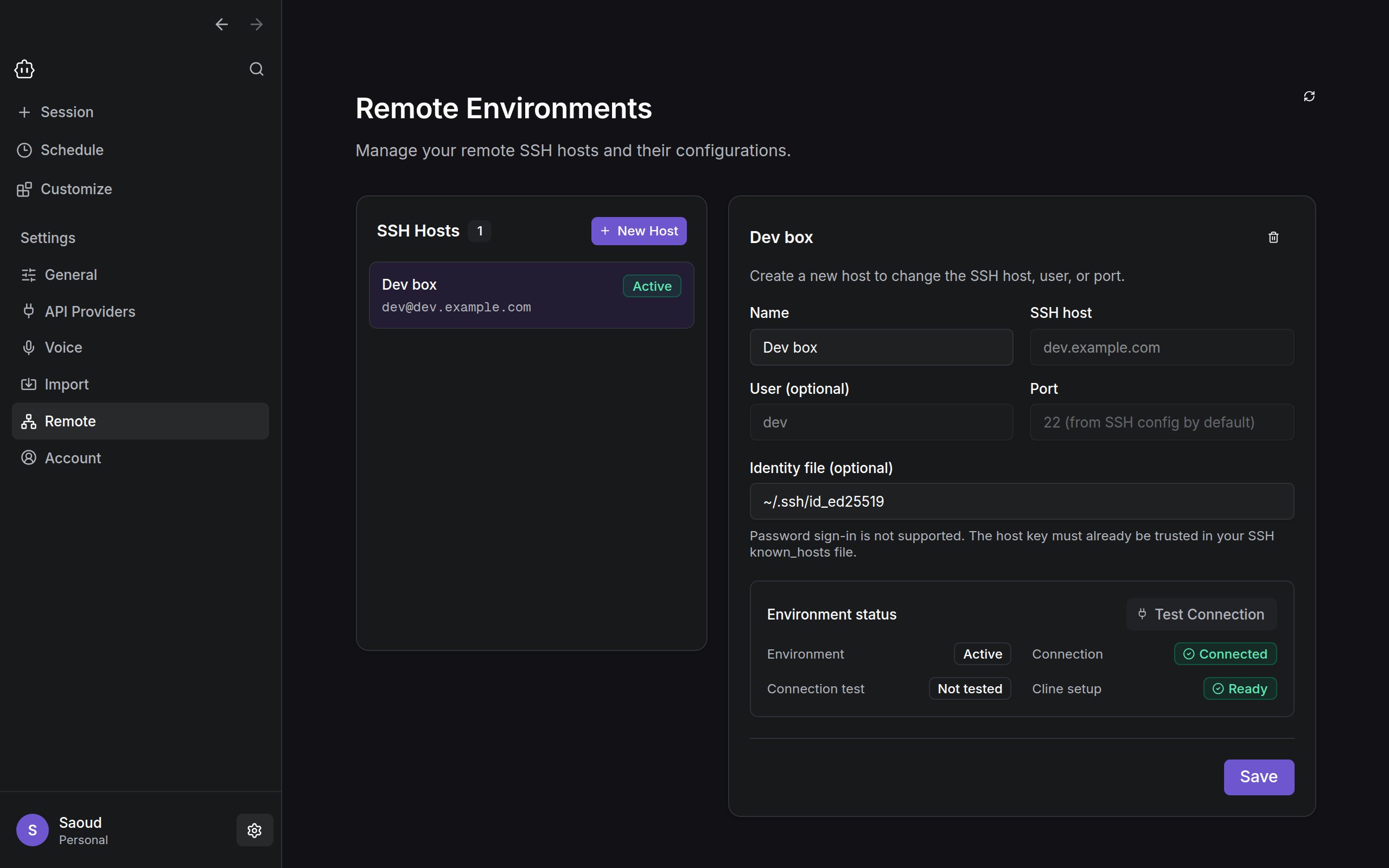
Open **Settings → Remote** and click **New Host**.
Fill in the form:
| Field | What to enter |
| ---------------------------- | ------------------------------------------------------------------------------------------------------------------------------------ |
| **Name** | Anything you like. This is the label you will see in the environment selector. |
| **SSH host** | The hostname or IP address, exactly as you would type after `ssh user@`. An alias from `~/.ssh/config` works too. |
| **User (optional)** | Your account name on the remote machine. Leave blank to use your SSH config or your local username. |
| **Port** | Leave blank unless the server listens on a port other than 22. Blank means "whatever my SSH config says". |
| **Identity file (optional)** | The path to your private key, for example `~/.ssh/id_ed25519`. Leave blank if you have one key or your SSH config already picks one. |
Click **Test Connection**. Cline logs in over SSH and reports the host's platform. A green **Passed** badge means your key and host trust are set up correctly. Testing also saves the host to the list on the left.
 Saving or testing a host does not connect to it. Nothing runs on the remote machine until you select it in the next step.
## Step 2: Connect and open a project
Go back to the new-session screen. The **environment selector** is the small laptop icon to the left of the workspace picker. It shows **Local** by default. Click it and choose your host under **Remote**.
Saving or testing a host does not connect to it. Nothing runs on the remote machine until you select it in the next step.
## Step 2: Connect and open a project
Go back to the new-session screen. The **environment selector** is the small laptop icon to the left of the workspace picker. It shows **Local** by default. Click it and choose your host under **Remote**.
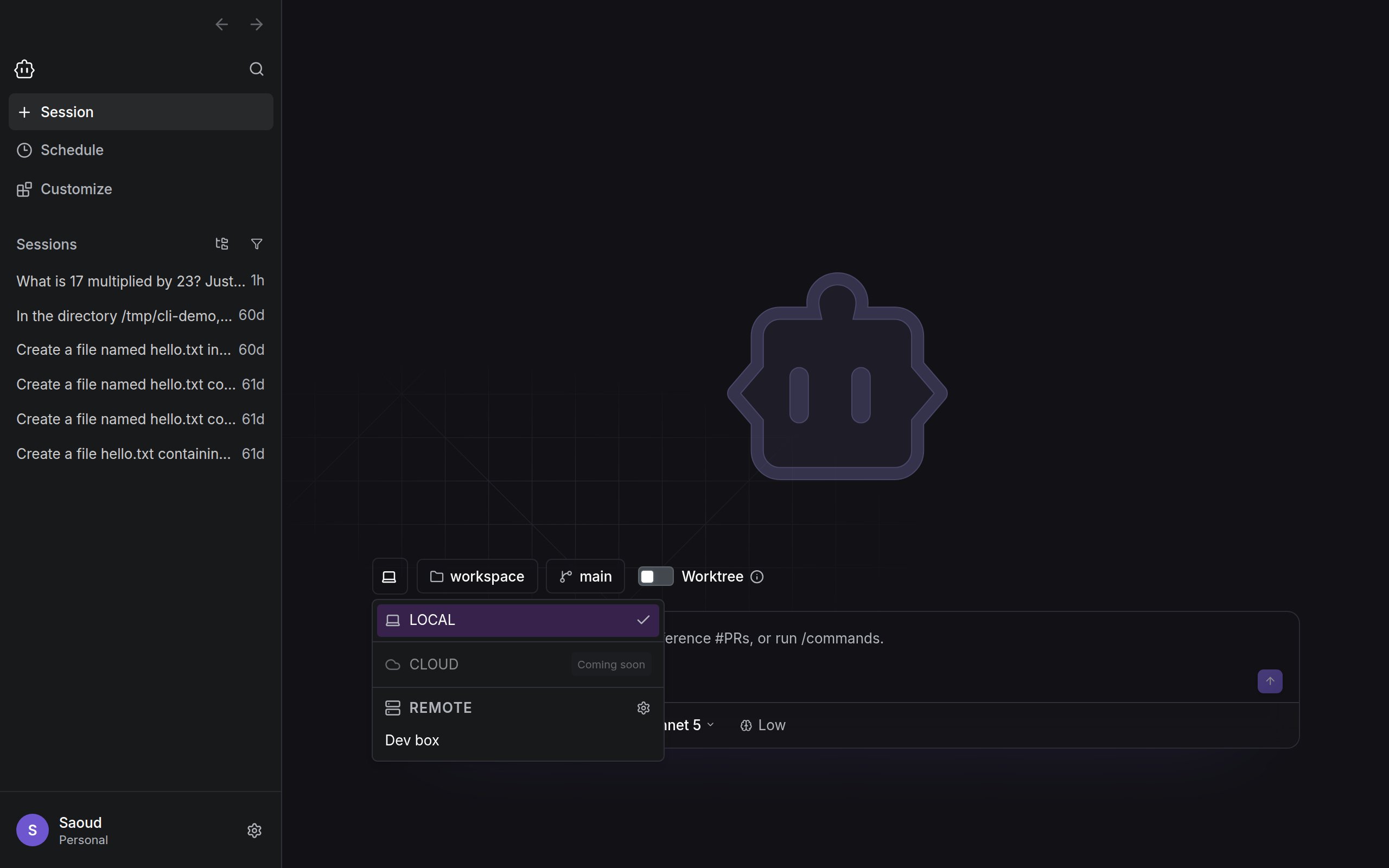 The first connection takes a few seconds while Cline uploads its helper to the host. Once connected, the icon changes to a server and the workspace picker shows your remote home directory. Open the workspace picker and choose **Open folder...** to browse the remote machine and pick a project, then click **Use this folder**.
Cline remembers recent workspaces separately for each host, so on later connections the project appears in the picker's list.
## Step 3: Work as usual
Start a session the same way you would locally. Every tool call runs on the remote machine as the SSH user, in the folder you picked.
The first connection takes a few seconds while Cline uploads its helper to the host. Once connected, the icon changes to a server and the workspace picker shows your remote home directory. Open the workspace picker and choose **Open folder...** to browse the remote machine and pick a project, then click **Use this folder**.
Cline remembers recent workspaces separately for each host, so on later connections the project appears in the picker's list.
## Step 3: Work as usual
Start a session the same way you would locally. Every tool call runs on the remote machine as the SSH user, in the folder you picked.
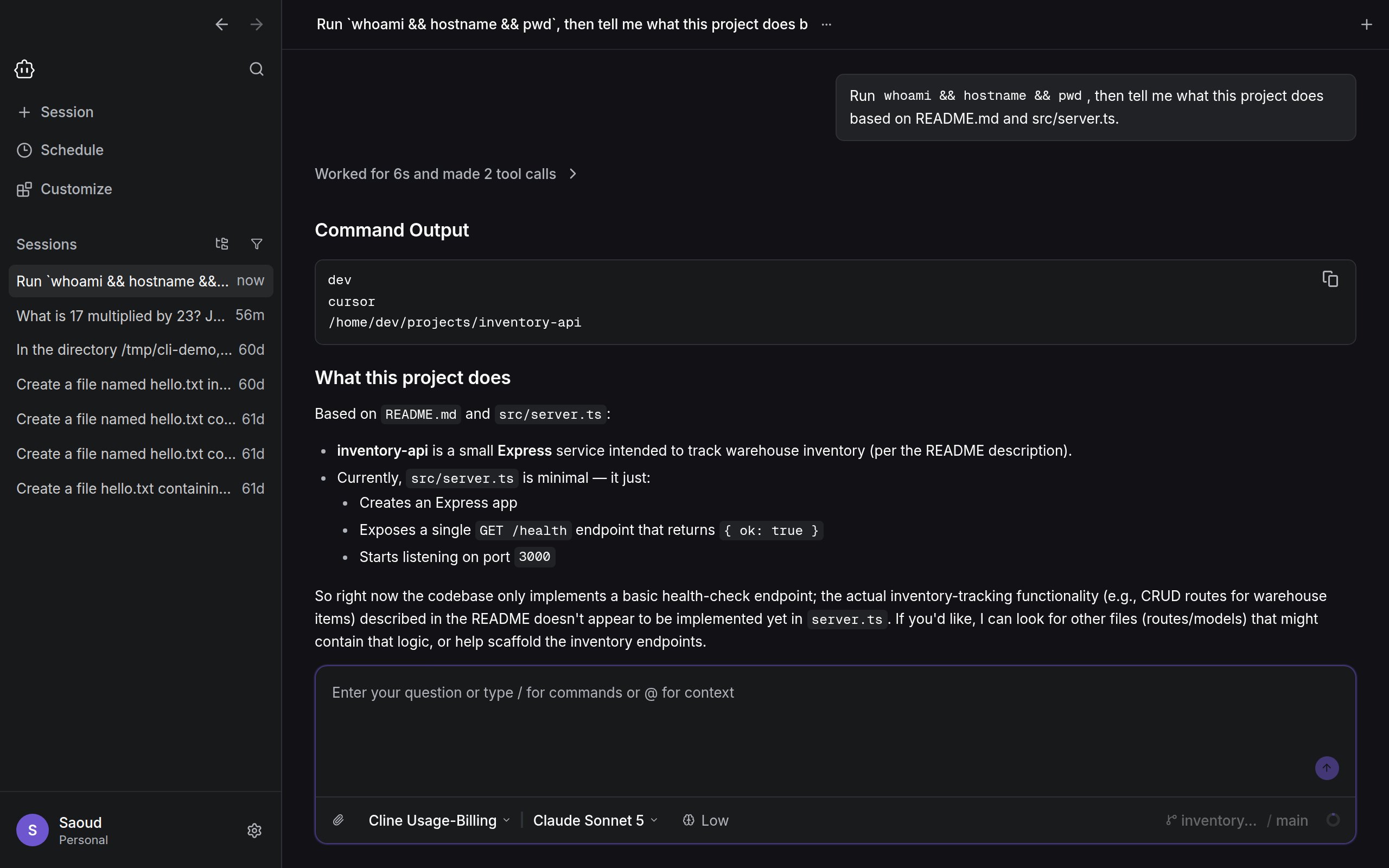 Everything that runs on the host:
* Reading, searching, and editing files, and `@`-mentioning them
* Terminal commands and Git operations, including switching branches
* MCP servers and other tools configured on that machine (the helper picks up the remote login shell's `PATH`, so tools installed under your account are visible)
* Session history, which is stored on the host
Everything that stays on your computer:
* The chat, approvals, and live streaming output
* Your provider settings. The current API key or access token is sent to the host for the session over the authenticated tunnel; it is not written to the remote machine's provider settings
To go back to your own machine, open the environment selector and choose **Local**. This disconnects, stops the helper on the host, and leaves it cached in `~/.cline/remote/` for a faster reconnect.
## Limitations
* **Key-based login only.** Password prompts are never shown, so password-only accounts cannot connect.
* **The host must already be trusted.** Cline refuses unknown or changed host keys rather than prompting. Log in once from a terminal first.
* **Remote hosts:** Linux x64 and arm64, and macOS when Cline Desktop is running on a Mac. Windows hosts are not supported.
* **One host at a time.** Switching hosts disconnects from the current one.
* **Not available in remote sessions yet:** attaching files from your computer, and opening a remote file in a local editor.
* If the network drops, the tunnel closes after about 45 seconds and you reconnect by selecting the host again.
## Troubleshooting
Cline shows the SSH client's own error in the **Environment status** panel. The common ones:
| Message | What it means | Fix |
| --------------------------------------------------------------------- | ------------------------------------------------------------------- | -------------------------------------------------------------------------------------------------------------------------------------------------------------------------------------------------------------------------------- |
| `Could not resolve hostname` | Your computer cannot look up the name you entered. | Check the spelling, make sure you are on the right network or VPN, or use the IP address. |
| `Permission denied (publickey)` | The host did not accept your key. | Run `ssh-copy-id user@host` (step 2 above), double-check the **User** field, and make sure **Identity file** points at the private key, not the `.pub` file. |
| `Host key verification failed` or `No ... host key is known` | The host is not in your `known_hosts` yet, or its key changed. | Run `ssh user@host` in a terminal and answer `yes`. If the key changed unexpectedly, confirm with whoever manages the machine before trusting it. |
| `Identity file ... not accessible` | The path in **Identity file** does not exist. | Fix the path, or leave the field blank to let SSH choose. |
| `Remote target ... is unsupported` | Test passed, but the host's OS or architecture has no Cline helper. | Windows hosts, 32-bit ARM, and Mac hosts from a Windows or Linux desktop are not supported. |
| Works from a terminal but not in Cline, and your key has a passphrase | Cline cannot type the passphrase for you. | Load the key into your SSH agent: `ssh-add --apple-use-keychain ~/.ssh/id_ed25519` on macOS or `ssh-add ~/.ssh/id_ed25519` elsewhere. On Linux, make sure the agent is started for your desktop session, not only your terminal. |
## How it works
For those who want the details:
1. Cline runs your system `ssh` with `BatchMode=yes` and `StrictHostKeyChecking=yes`, plus `-i ` and `-p ` if you filled those in. It never stores passwords or private-key contents; host settings live in `~/.cline/data/settings/remote-environments.json` with owner-only permissions.
2. On connect it checks the host's OS and architecture, then uploads a matching, self-contained Cline helper to `~/.cline/remote/` (about 30 MB for Linux, sent once per Cline version and cached).
3. The helper starts a Cline Hub bound to the host's loopback interface. Cline forwards it to a random local port with `ssh -L`, so nothing on the host is exposed to the network.
4. Only Cline's authenticated protocol crosses the tunnel. Tool execution and session storage happen on the host; the app is a client.
A Cline CLI already running on the same remote account is left untouched; the desktop's helper uses its own isolated Hub.
## Related
* [Cline Desktop](/usage/cline-desktop)
* [Cline CLI](/usage/cli-overview)
Everything that runs on the host:
* Reading, searching, and editing files, and `@`-mentioning them
* Terminal commands and Git operations, including switching branches
* MCP servers and other tools configured on that machine (the helper picks up the remote login shell's `PATH`, so tools installed under your account are visible)
* Session history, which is stored on the host
Everything that stays on your computer:
* The chat, approvals, and live streaming output
* Your provider settings. The current API key or access token is sent to the host for the session over the authenticated tunnel; it is not written to the remote machine's provider settings
To go back to your own machine, open the environment selector and choose **Local**. This disconnects, stops the helper on the host, and leaves it cached in `~/.cline/remote/` for a faster reconnect.
## Limitations
* **Key-based login only.** Password prompts are never shown, so password-only accounts cannot connect.
* **The host must already be trusted.** Cline refuses unknown or changed host keys rather than prompting. Log in once from a terminal first.
* **Remote hosts:** Linux x64 and arm64, and macOS when Cline Desktop is running on a Mac. Windows hosts are not supported.
* **One host at a time.** Switching hosts disconnects from the current one.
* **Not available in remote sessions yet:** attaching files from your computer, and opening a remote file in a local editor.
* If the network drops, the tunnel closes after about 45 seconds and you reconnect by selecting the host again.
## Troubleshooting
Cline shows the SSH client's own error in the **Environment status** panel. The common ones:
| Message | What it means | Fix |
| --------------------------------------------------------------------- | ------------------------------------------------------------------- | -------------------------------------------------------------------------------------------------------------------------------------------------------------------------------------------------------------------------------- |
| `Could not resolve hostname` | Your computer cannot look up the name you entered. | Check the spelling, make sure you are on the right network or VPN, or use the IP address. |
| `Permission denied (publickey)` | The host did not accept your key. | Run `ssh-copy-id user@host` (step 2 above), double-check the **User** field, and make sure **Identity file** points at the private key, not the `.pub` file. |
| `Host key verification failed` or `No ... host key is known` | The host is not in your `known_hosts` yet, or its key changed. | Run `ssh user@host` in a terminal and answer `yes`. If the key changed unexpectedly, confirm with whoever manages the machine before trusting it. |
| `Identity file ... not accessible` | The path in **Identity file** does not exist. | Fix the path, or leave the field blank to let SSH choose. |
| `Remote target ... is unsupported` | Test passed, but the host's OS or architecture has no Cline helper. | Windows hosts, 32-bit ARM, and Mac hosts from a Windows or Linux desktop are not supported. |
| Works from a terminal but not in Cline, and your key has a passphrase | Cline cannot type the passphrase for you. | Load the key into your SSH agent: `ssh-add --apple-use-keychain ~/.ssh/id_ed25519` on macOS or `ssh-add ~/.ssh/id_ed25519` elsewhere. On Linux, make sure the agent is started for your desktop session, not only your terminal. |
## How it works
For those who want the details:
1. Cline runs your system `ssh` with `BatchMode=yes` and `StrictHostKeyChecking=yes`, plus `-i ` and `-p ` if you filled those in. It never stores passwords or private-key contents; host settings live in `~/.cline/data/settings/remote-environments.json` with owner-only permissions.
2. On connect it checks the host's OS and architecture, then uploads a matching, self-contained Cline helper to `~/.cline/remote/` (about 30 MB for Linux, sent once per Cline version and cached).
3. The helper starts a Cline Hub bound to the host's loopback interface. Cline forwards it to a random local port with `ssh -L`, so nothing on the host is exposed to the network.
4. Only Cline's authenticated protocol crosses the tunnel. Tool execution and session storage happen on the host; the app is a client.
A Cline CLI already running on the same remote account is left untouched; the desktop's helper uses its own isolated Hub.
## Related
* [Cline Desktop](/usage/cline-desktop)
* [Cline CLI](/usage/cli-overview)