> ## Documentation Index
> Fetch the complete documentation index at: https://docs.cline.bot/llms.txt
> Use this file to discover all available pages before exploring further.
# SSO Setup
> Configure Single Sign-On (SSO) for Cline Enterprise via WorkOS AuthKit.
## Overview
Cline Enterprise integrates with your identity provider (IdP) via **WorkOS AuthKit** for SSO.
This page describes, at a high level, how SSO is set up for Cline Enterprise using WorkOS AuthKit.
If you haven't completed initial onboarding, start with [Onboarding](/enterprise-solutions/onboarding).
### Video Walkthrough
## Where setup happens
SSO setup spans two places:
1. **Cline Dashboard (app.cline.bot)**
* Where you sign in and verify SSO works for your organization.
2. **WorkOS dashboard**
* Where your IdP connection is configured (AuthKit → Connections). Your designated admin receives access to this during enterprise onboarding.
## Using the Cline Dashboard
Use the Cline Dashboard at [https://app.cline.bot](https://app.cline.bot) to:
* complete sign-in and onboarding flows
* verify users can authenticate via SSO
## Configure your IdP connection in WorkOS
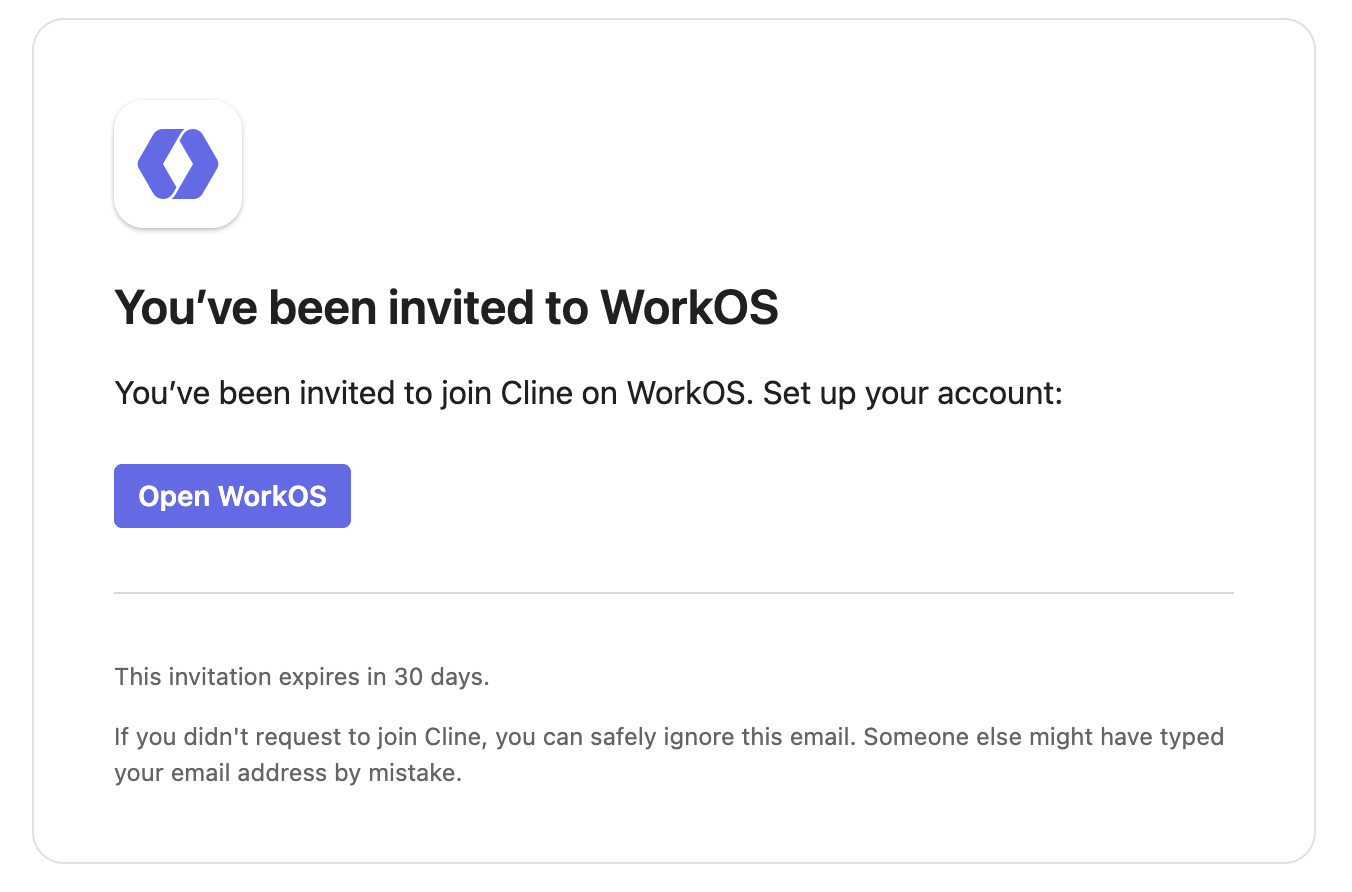
During enterprise onboarding, your designated admin will receive an invitation email from WorkOS with a link to access your organization's WorkOS dashboard.
To connect your IdP to Cline Enterprise, configure your identity provider in **WorkOS AuthKit**:
1. In the WorkOS dashboard, go to **AuthKit → Connections**
2. Click **Add Connection**
3. Select your identity provider (e.g., Okta, Microsoft Entra ID/Azure AD, Google Workspace, Generic SAML/OIDC)
4. Follow the provider-specific instructions in WorkOS
WorkOS’s UI and required fields vary by provider. For details, follow WorkOS documentation:
* [https://workos.com/docs/authkit/sso](https://workos.com/docs/authkit/sso)
## Keycloak note (IdP compatibility)
Cline Enterprise’s default SSO integration is **via WorkOS**.
If you use **Keycloak** as your IdP, the supported path is to configure Keycloak in WorkOS as a **Generic SAML** or **Generic OIDC** provider (using the settings WorkOS requests for those provider types).
## Verification
After configuring WorkOS:
1. Attempt an SSO sign-in from [https://app.cline.bot](https://app.cline.bot).
2. Confirm the sign-in completes (you are redirected back successfully).
## Troubleshooting
* **Redirect URI mismatch**: confirm the redirect/callback URL configured in WorkOS matches what was provided during your Cline Enterprise onboarding.
For additional troubleshooting guidance, refer to WorkOS documentation:
* [https://workos.com/docs/authkit/sso](https://workos.com/docs/authkit/sso)
 To connect your IdP to Cline Enterprise, configure your identity provider in **WorkOS AuthKit**:
1. In the WorkOS dashboard, go to **AuthKit → Connections**
2. Click **Add Connection**
3. Select your identity provider (e.g., Okta, Microsoft Entra ID/Azure AD, Google Workspace, Generic SAML/OIDC)
4. Follow the provider-specific instructions in WorkOS
WorkOS’s UI and required fields vary by provider. For details, follow WorkOS documentation:
* [https://workos.com/docs/authkit/sso](https://workos.com/docs/authkit/sso)
## Keycloak note (IdP compatibility)
Cline Enterprise’s default SSO integration is **via WorkOS**.
If you use **Keycloak** as your IdP, the supported path is to configure Keycloak in WorkOS as a **Generic SAML** or **Generic OIDC** provider (using the settings WorkOS requests for those provider types).
## Verification
After configuring WorkOS:
1. Attempt an SSO sign-in from [https://app.cline.bot](https://app.cline.bot).
2. Confirm the sign-in completes (you are redirected back successfully).
## Troubleshooting
* **Redirect URI mismatch**: confirm the redirect/callback URL configured in WorkOS matches what was provided during your Cline Enterprise onboarding.
For additional troubleshooting guidance, refer to WorkOS documentation:
* [https://workos.com/docs/authkit/sso](https://workos.com/docs/authkit/sso)
To connect your IdP to Cline Enterprise, configure your identity provider in **WorkOS AuthKit**:
1. In the WorkOS dashboard, go to **AuthKit → Connections**
2. Click **Add Connection**
3. Select your identity provider (e.g., Okta, Microsoft Entra ID/Azure AD, Google Workspace, Generic SAML/OIDC)
4. Follow the provider-specific instructions in WorkOS
WorkOS’s UI and required fields vary by provider. For details, follow WorkOS documentation:
* [https://workos.com/docs/authkit/sso](https://workos.com/docs/authkit/sso)
## Keycloak note (IdP compatibility)
Cline Enterprise’s default SSO integration is **via WorkOS**.
If you use **Keycloak** as your IdP, the supported path is to configure Keycloak in WorkOS as a **Generic SAML** or **Generic OIDC** provider (using the settings WorkOS requests for those provider types).
## Verification
After configuring WorkOS:
1. Attempt an SSO sign-in from [https://app.cline.bot](https://app.cline.bot).
2. Confirm the sign-in completes (you are redirected back successfully).
## Troubleshooting
* **Redirect URI mismatch**: confirm the redirect/callback URL configured in WorkOS matches what was provided during your Cline Enterprise onboarding.
For additional troubleshooting guidance, refer to WorkOS documentation:
* [https://workos.com/docs/authkit/sso](https://workos.com/docs/authkit/sso)